As an Amazon Associate, I earn from qualifying purchases.
Why Dual Monitors Are Worth It
Studies consistently show that dual monitors increase productivity by 20-30%. The reason is simple: you stop wasting time switching between windows. You can have your email on one screen and your work on the other, or reference material on the left while writing on the right.
But a bad dual monitor setup causes neck pain, eye strain, and clutter. Here's how to do it right.
Choosing Your Second Monitor
Ideally, your second monitor matches your primary in size and resolution. If that's not possible, here are the rules:
- Same resolution is more important than same size — prevents cursor jumping between screens
- Same panel type (IPS, VA, TN) keeps colors consistent
- At least 24 inches — anything smaller feels cramped for a work monitor
- 1080p minimum, 1440p preferred — text clarity matters for work

Dell S2422HZ 24" Video Conferencing Monitor
1080p IPS with built-in webcam, USB-C, and speakers. Perfect second monitor for a home office setup.
Monitor Placement
Where you place your monitors matters more than which monitors you buy. The wrong position causes chronic neck and shoulder pain.
The Ideal Setup
- Primary monitor directly in front of you — centered on your keyboard
- Secondary monitor to the side — angled 30° inward, at the same height
- Top of screen at eye level — you should look slightly down at the center of the screen
- Arm's length distance — about 20-26 inches from your face
- Screens touching — no gap between monitors, so windows can span both
Monitor Arms — The Game Changer
The single biggest upgrade to a dual monitor setup is a monitor arm. It frees up desk space, gives you precise height/angle adjustment, and makes it easy to reconfigure.
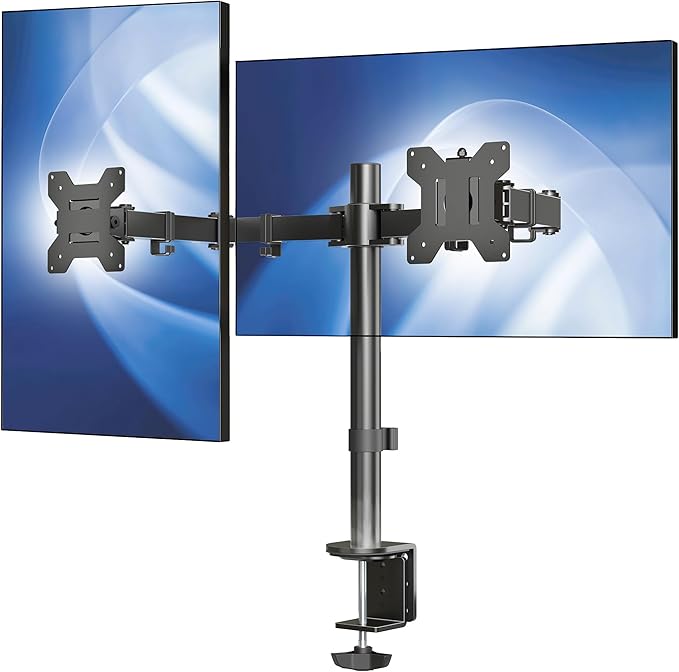
VIVO Dual Monitor Desk Mount (STAND-V002)
Fully adjustable gas spring arms for two monitors up to 27". Clamp mount fits desks up to 3.25" thick. Cable management clips included.
| Feature | Desk Stand (Included) | Monitor Arm |
|---|---|---|
| Desk Space | Large footprint | Frees up entire surface |
| Height Adjustment | Limited (1-2 inches) | Full range (12+ inches) |
| Tilt/Swivel | Basic | 360° rotation |
| Repositioning | Difficult | Easy — push/pull |
| Cable Management | None | Built-in clips |
| Cost | Free (included) | $30-50 for dual arm |
Windows & Mac Dual Monitor Settings
Windows 10/11
- Right-click desktop → Display Settings
- Click "Identify" to see which number is which monitor
- Drag the monitor icons to match your physical layout
- Set both to same scale (100% or 125%)
- Choose "Extend these displays" (not "Duplicate")
macOS
- System Preferences → Displays → Arrangement
- Drag displays to match physical layout
- Move the white menu bar to your primary display
- Uncheck "Mirror Displays"
Cable Management for Dual Monitors
Two monitors means double the cables. Without management, you end up with a tangled mess behind your desk. Here's how to keep it clean:
- Use the monitor arm's built-in cable channels
- Run cables down the arm, not dangling behind the desk
- Use a single USB-C dock to consolidate cables to your laptop
- Cable sleeves or velcro ties bundle power + display cables together

Cable Management Kit — Under Desk
Includes cable tray, clips, ties, and sleeves. Everything you need to hide cables under and behind your desk.
Productivity Tips for Dual Monitors
- Win + Shift + Arrow (Windows): Snap a window to the other monitor instantly
- Ctrl + Win + Arrow (Windows): Switch virtual desktops
- Assign apps to monitors: Keep email/chat on the secondary, focus work on primary
- Use a dark wallpaper on the secondary to reduce distraction when not in use
- Window management tools like PowerToys (Windows) or Rectangle (Mac) make snapping easy
As an Amazon Associate, I earn from qualifying purchases.